Loading article
Practical guides for WooCommerce product data.
Every method is tested on real WooCommerce stores before it is published.
Loading articles
Every method is tested on real WooCommerce stores before it is published.
Three sample CSV files for the WooCommerce product importer: simple products, a variable product and products with images. Each was imported into WooCommerce 11.2 and is explained column by column.
Before you import a catalog into WooCommerce, one question always comes first: what should the file look like? Which columns, in what order, written how? The quickest way to find out is to start from a file that already works, then replace its values with yours.
Here are three. Each one went through the WooCommerce 11.2.1 importer, under Products → Import, with nothing changed at the Column mapping step. Every column was recognized and no row was skipped. Download the one that looks like your catalog. The rest of this page explains what each column does.
Simple products
Three products without images: one with a stock quantity, one on sale, one out of stock.
Variable product
One variable product and its three variations, without images.
Products with images
One simple product with a gallery, one variable product with an image per color.
The three files use different SKUs, so they can go into the same store one after the other: ours ended with 6 products and 5 variations. ScrapeWoo's WooCommerce CSV export wrote them, from three small catalogs built for this page. The pictures in the third file are ScrapeWoo illustrations hosted on scrapewoo.com, so the importer can download them.
For the first file, the last screen read "Import complete! 3 products imported."
How the files were checked
WooCommerce 11.2.1 on WordPress 7.1.3, with the built-in importer and no extension, on one store in English and one in French. Each file went through the import screen. We then read back, by script, what the store held for every product: the "recorded" columns of the tables below come from that reading.
All three files begin with the same 22 columns. The values shown here are those of the first file.
These nine columns say which product it is and how the store shows it: its type, its name, its SKU and its two descriptions.
| Column | In the sample | Recorded by WooCommerce |
|---|---|---|
ID |
empty | A new product was created. A filled cell designates an existing product to update, according to the WooCommerce importer documentation. |
Type |
simple | A simple product. The second file uses variable and variation. |
SKU |
MUG-ENAMEL | The product's SKU. A later import matches its rows on it. |
Name |
Enamel Camp Mug | The product name. It is the only column the documentation marks as required. |
Published |
1 | Published. The documentation gives 0 for private and -1 for draft. |
Is featured? |
0 | Not featured. |
Visibility in catalog |
visible | Catalog visibility set to visible. The documentation lists three other values: catalog, search and hidden. |
Short description |
350 ml enameled steel mug. | The short description. |
Description |
Two HTML paragraphs | The description, with its <p> tags kept. |
Four columns cover the price, the sale price and the stock.
| Column | In the sample | Recorded by WooCommerce |
|---|---|---|
Regular price |
14.00 | A regular price of 14.00 in the store's currency. The file names no currency: our test store was in US dollars. |
Sale price |
9.00 on the tea towel, whose regular price is 12.00 | The tea towel on sale at 9.00, with 12.00 kept as its regular price. |
In stock? |
1 on the mug and the tea towel, 0 on the candle | In stock for the first two, out of stock for the candle. |
Stock |
40 on the mug, empty on the other two | Stock management switched on for the mug, with a quantity of 40. The other two are not stock-managed and keep only the status given by In stock?. |
Next come weight and dimensions, categories and tags, images, then two columns that tie a row to its parent and set its order.
| Column | In the sample | Recorded by WooCommerce |
|---|---|---|
Weight |
0.18 | 0.18 in the store's weight unit. The file carries no unit. The Column mapping step names the one that applies: "Weight (lbs)" on our English store, "Poids (kg)" on the French store once it was set to kilograms. |
Length, Width, Height |
12, 9, 8 | The same three numbers in the store's dimension unit, shown as "Length (in)" on the English store. |
Categories |
Kitchen > Mugs on the mug, Home, Gifts on the candle |
The > sign builds a hierarchy: a Mugs category was created under Kitchen. A comma separates two categories: the candle went into Home and into Gifts. |
Tags |
camping, enamel | Two tags. |
Images |
empty | No image. The third file fills this column. |
Parent |
empty | Nothing. Only variation rows use it. |
Position |
0 | A menu order of 0. On variation rows the column numbers the variations. |
Each attribute, size or color for instance, takes four columns: its name, its values, whether it shows on the product page and whether it is global.
| Column | In the sample | Recorded by WooCommerce |
|---|---|---|
Attribute 1 name |
Material | An attribute called Material on the product. |
Attribute 1 value(s) |
Enameled steel | Its single value. Several values are separated by commas, as in S, M, L in the second file. |
Attribute 1 visible |
1 | The attribute is marked as visible. |
Attribute 1 global |
0 | The attribute belongs to this product only. Nothing was added under Products → Attributes. |
A file has as many groups of four columns as the product with the most attributes needs. The second file has two groups, which brings it to 30 columns.
The second file describes a T-shirt sold in three sizes. It takes four rows: one for the product and one per size. These are the columns that tie them together.
| Type | SKU | Parent | Position | Attribute 1 value(s) | Stock |
|---|---|---|---|---|---|
| variable | TEE-ORGANIC | empty | 0 | S, M, L | empty |
| variation | TEE-ORGANIC-S | TEE-ORGANIC | 1 | S | 12 |
| variation | TEE-ORGANIC-M | TEE-ORGANIC | 2 | M | 8 |
| variation | TEE-ORGANIC-L | TEE-ORGANIC | 3 | L | empty |
Each variation row gives the SKU of its product in Parent, and Position numbers the variations from 1 to 3. The Size attribute lists its three values on the first row and a single one on each variation. The second attribute, Fabric, describes the product and appears on the first row only.
After the import the store held one variable product with three variations. Size was marked as used for variations and Fabric was not. Each variation had its own price and stock: 25.00 for S and L, 19.00 on sale for M, 12 and 8 in stock, and L out of stock. The Name cell of the variation rows holds the product's name, and the store recorded the variations as "Organic Cotton T-Shirt - S", "- M" and "- L".
The rules behind these rows, and what each mistake in them produces, have their own guide: how to import WooCommerce variable products from a CSV.
The Images cell holds web addresses separated by commas. WooCommerce downloads each picture into the media library during the import, so every address has to answer at that moment.
| Row | Images cell | Recorded by WooCommerce |
|---|---|---|
| Stoneware Bowl, simple product | Three addresses | The first became the main image, the other two went to the gallery. |
| Waxed Cotton Apron, variable product | One address | The product's main image. |
| Each of its two variations, Olive and Rust | One address | The image of that variation. |
Six pictures were added to the media library, all with an empty alternative text. The importer documentation states that it cannot add alt text, so plan to write it afterwards.
An address that returns an error makes its row fail. In a two-row test, the product whose image returned a 404 was not created. The import log read "Error getting remote image", followed by the address and "Error: Not Found". The other product was imported.
We imported a file reduced to one column, Name, and one row. The screen read "Import complete! 1 product imported." The store held a published simple product with no price and no SKU, in stock, in the default category. A column you do not need can therefore go. In this test, every field the file did not mention took its default value.
In the other direction, the Column mapping step offers fields our files leave out. For selling: GTIN, UPC, EAN or ISBN, sale price dates, tax status and tax class, sold individually, upsells and cross-sells. For stock and shipping: backorders, low stock amount, shipping class. And the rest: grouped products, external URL and button text, downloads, default attribute, customer reviews, purchase note and brands. The accepted values of most of them are listed in the Product CSV Import Schema. Without those columns, our products were recorded as taxable, with backorders off and reviews allowed.
Our files separate cells with commas, write decimals with a point and are encoded in UTF-8. A spreadsheet can change all three when it saves. For Excel, Microsoft's documentation explains that the separator of a saved CSV follows the regional settings of Windows. When a comma is the decimal separator there, Excel separates cells with semicolons. The table shows what each change produced. None of them raised a warning.
| Change in the file | What the store recorded |
|---|---|
| Semicolons between cells, "CSV Delimiter" left empty | The Column mapping step showed one column instead of 26. The import still ended on "Import complete! 3 products imported." The store held three published products named "Product", with no price and no SKU. |
Semicolons between cells, "CSV Delimiter" set to ; under "Show advanced options" |
26 columns matched, and the same three products as with the original file. |
A price written 14,50, on a store whose decimal separator is a point |
A price of 1450. |
A weight written 0,18, on the same store |
A weight of 18. |
| The same two cells, on a store whose decimal separator is a comma and whose thousand separator is a space | 14.50 and 0.18, as intended. Numbers written with a point were read correctly on both stores. |
| The French version of the first file saved as Windows-1252, encoding left on "Autodetect" | "Mug émaillé de camping" recorded as "Mug ?maill? de camping". With Windows-1252 chosen in "Character encoding of the file", the names were correct. |
Two checks cover the first lines of this table. On the Column mapping step, count the rows: a single one means the separator was not understood. In the file, keep the point as the decimal sign: it is the form that was read correctly whatever the store's setting. The store's own separator is under WooCommerce → Settings → General, in the currency options.
A second import of the variable product file created nothing. The screen read "Import complete! 4 products were skipped." and the import log gave the same reason for each row: "A product with this SKU already exists." With "Update existing products" checked on the first step, the same file ended on "Import complete! 4 products updated." The store held the same products as before.
To remove the samples, select them in the Products list, move them to the Trash, then empty the Trash. In our test this deleted the 6 products and their 5 variations. What the import had created around them stayed: 9 categories, 5 tags and the 6 downloaded images. Delete those under Products → Categories, Products → Tags and in the media library to clear what the samples created.
WooCommerce ships a larger sample, sample_products.csv, in the sample-data folder of the plugin. Its documentation explains where to find it and how to import it. The copy inside WooCommerce 11.2.1 has 51 columns and 25 rows. Imported the same way, it gave "Import complete! 18 products imported. 7 variations imported.": simple, variable, grouped and external products with their pictures, and two global attributes, Color and Size.
Pick that file to fill a theme or a demo store. The three files on this page do another job. They have few rows and one subject each: simple products, a variable product, images. You can read their columns from left to right before writing your own.
A sample written for another import tool may carry other header names. We ran five headers taken from the column reference of the Product CSV Import Suite extension through the built-in screen. It matched post_title, post_content and sku to Name, Description and SKU, and left tax:product_type and post_status on "Do not import". The Column mapping step is where this shows, before anything is created.
These files are what ScrapeWoo produces. Give it the address of a supported WooCommerce store, choose the categories and the products, then select WooCommerce CSV at the export step. It writes this file for the whole selection: the same 22 columns, four more per attribute, one row per product and one per variation.
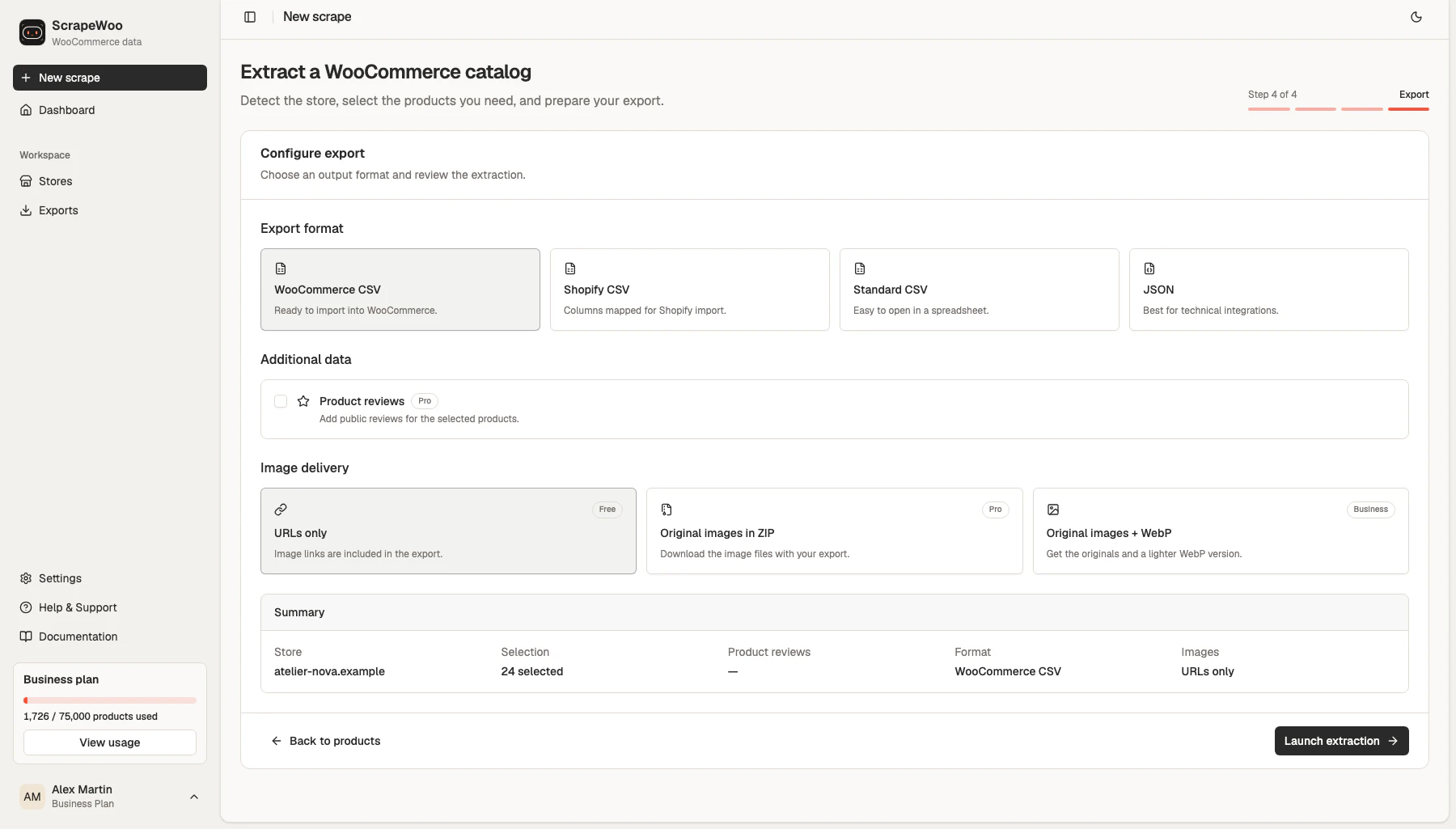
The file comes out in the form that went through the importer above with no adjustment. Cells are separated by commas, the encoding is UTF-8 and prices use a point. Category paths are written with >, each variable product is followed by its variations, and image addresses keep the gallery order. The separator, the decimals and the encoding described earlier are already right when you download it.
ScrapeWoo hands you the file, and you run the import in your store, where the currency and the units are yours. If you have not settled on a format yet, the guide to choosing a WooCommerce product export format compares this file with the Shopify CSV, the standard CSV and the JSON export.

Compare WooCommerce CSV, Shopify CSV, standard CSV and JSON exports generated from the same product catalog, then choose the file that fits your destination.

See how WooCommerce products, variants, images, prices and SKUs map into a Shopify CSV, including the fields you should verify before import.