How to import WooCommerce variable products from a CSV, row by row
See which rows and columns a WooCommerce CSV needs for variable products, and what each mistake produced when we imported real files into WooCommerce 11.2.
You import a CSV, WooCommerce says the import is complete, and the product page has no sizes and no colors. With variable products, a file can look right and still lose its variations on the way in.
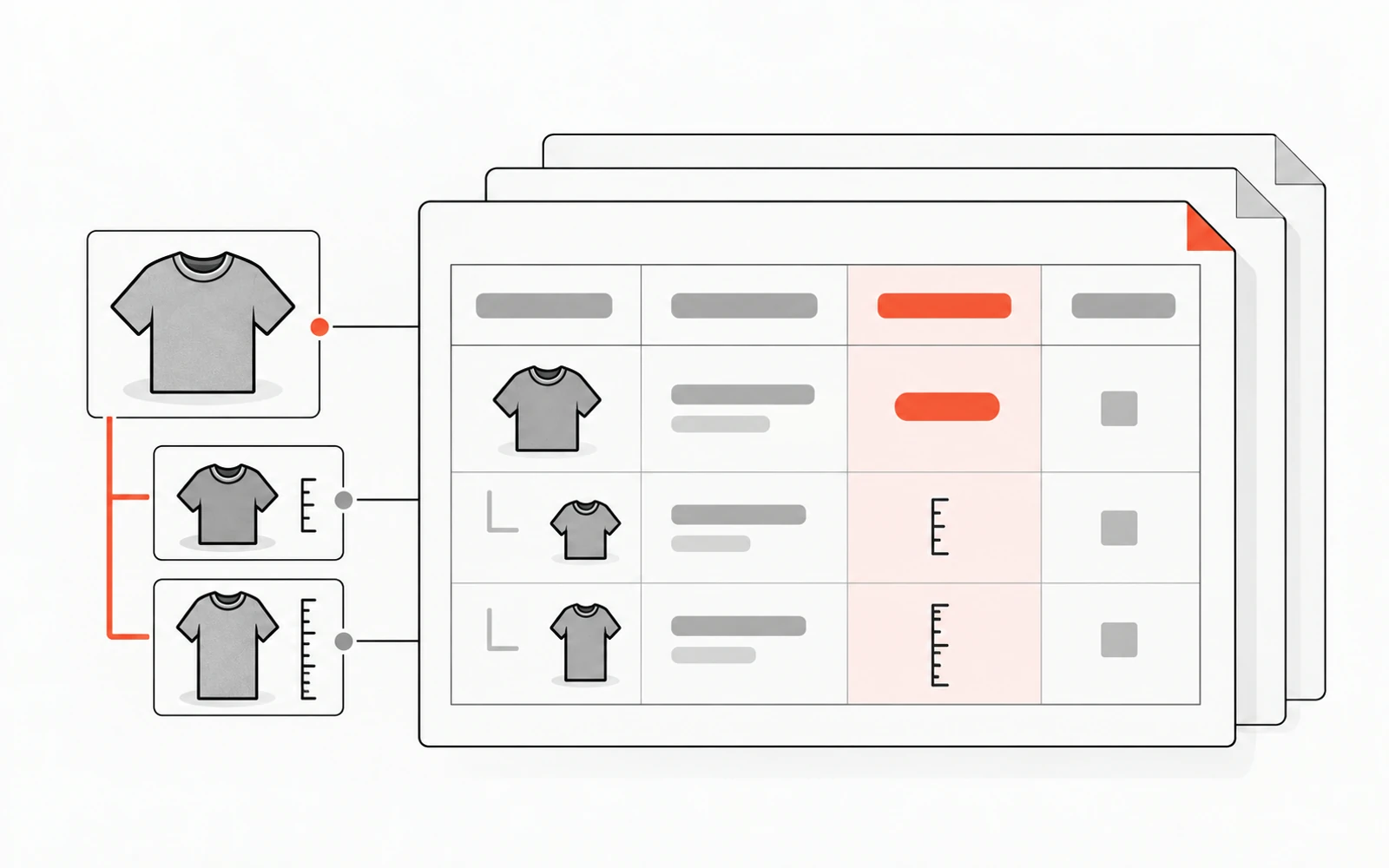
The rule itself is short. A variable product takes one row with the type variable, followed by one row with the type variation for each version you sell. Every variation row names its parent's SKU in the Parent column and repeats the attribute names with a single value. WooCommerce pairs the rows by exact text. In our tests, almost none of the mistakes produced an error message, so the file has to be checked cell by cell.
Here is a jacket and two of its variations, as they are written in the file:
| Type | SKU | Parent | Regular price | Attribute 1 name | Attribute 1 value(s) | Attribute 2 name | Attribute 2 value(s) |
|---|---|---|---|---|---|---|---|
| variable | HARBOR-JACKET | empty | 129.00 | Size | M, L | Color | Navy, Sage |
| variation | HARBOR-M-NAVY | HARBOR-JACKET | 129.00 | Size | M | Color | Navy |
| variation | HARBOR-L-NAVY | HARBOR-JACKET | 129.00 | Size | L | Color | Navy |
These three rows come from a file we generated and then imported. They show the whole mechanism: the parent lists every size and color, each variation keeps one of each, and Parent carries the SKU that ties them together. The other columns of a WooCommerce CSV still apply. These are the ones that decide whether variations are created.
The test behind this guide
We built a small catalog of three products: a rain jacket sold in two sizes and two colors, a beanie with no SKU on the parent product, and a simple tote bag for contrast. The ScrapeWoo exporter turned it into a WooCommerce CSV with 38 columns and 9 data rows.
We imported that file into a disposable store running WooCommerce 11.2.1 on WordPress 7.1.3, through the Products → Import screen, with the column mapping the screen preselects. It reported 3 products and 6 variations imported, and no row skipped or failed. We then imported a second file of deliberately broken products to see what each mistake produces.
How we tested
Every import ran on WooCommerce 11.2.1 with the built-in importer and no extensions, and both files went through the Products → Import screen. After each import we checked what the store had actually recorded, down to whether each option a shopper can pick leads to a variation. A plugin that adds its own columns, or a different import tool, can behave differently.
How a variation finds its parent
The Parent cell of a variation row holds the parent's SKU. WooCommerce also accepts a product ID written as id:123, according to its CSV import schema. The SKU is the safer choice when the file moves between stores, because IDs differ from one database to the next.
A parent without a SKU cannot be referenced that way. The beanie in our catalog had none, so the exporter wrote a generated one, SCRAPEWOO-620, on the parent row and in the Parent cell of both variations. Its variations were attached correctly.
A wrong value in Parent does not stop the import. In our second file, one variation pointed to CASE-AA instead of CASE-A. The import screen reported no error and counted the row among the variations it had imported. Afterwards that variation was nowhere in the store, and the real parent had one variation instead of two. When a variation is missing after an import that reported no error, look for a typo in Parent.
Row order matters too: keep each parent row above its variations. When we placed a variation above its parent, it was imported without its size. Only a second run, with the "Update existing products" box of the import screen ticked, restored the value.
Attributes: a list on the parent, one value on each variation
The parent row declares what can be chosen: Attribute 1 name holds Size and Attribute 1 value(s) holds M, L. A variation row repeats the name and gives the one value it stands for. The name must be the same text on both rows.
WooCommerce compares these texts exactly. Three of our broken products show what a near miss does:
| Mismatch in the file | What WooCommerce recorded |
|---|---|
Parent lists Navy Blue, the variation says navy blue |
The variation kept navy blue. Choosing Navy Blue led to no variation. |
Parent lists S, M, a variation says XL |
The variation was created with XL, a value the product does not offer. Size M had no variation. |
Parent names the attribute Color, a variation names it Colour |
The unknown name was ignored and the variation was imported with no color at all. |
The first case also comes in a less visible form. A store that uses global attributes, the ones listed under Products → Attributes, stores each value twice: a name such as Mineral Green and a slug such as mineral-green. A file that lists names on the parent and slugs on the variations imports without a single warning. In our test, neither of the product's two colors then led to a variation. Use the same form on both rows.
An empty value means "any"
Some stores sell a variation for any value of an attribute: one price for the charcoal beanie, whatever the lining. In the CSV, that variation keeps the attribute name and leaves the value empty.
| Type | SKU | Parent | Attribute 1 name | Attribute 1 value(s) | Attribute 2 name | Attribute 2 value(s) |
|---|---|---|---|---|---|---|
| variable | SCRAPEWOO-620 | empty | Color | Charcoal, Rust | Lining | Fleece, Unlined |
| variation | BEANIE-CHARCOAL | SCRAPEWOO-620 | Color | Charcoal | Lining | empty |
| variation | SCRAPEWOO-620-622 | SCRAPEWOO-620 | Color | Rust | Lining | empty |
It is tempting to repeat the parent's list in that cell. The schema says what happens then: a variation needs one value, and when several are given WooCommerce keeps the first. We imported both versions of the beanie to check.
| Lining cell on the variation rows | Result after import |
|---|---|
Fleece, Unlined |
Both variations were recorded with Lining set to Fleece. No variation existed for Unlined. |
| empty | Both variations were recorded with no fixed lining. All four combinations of color and lining led to a variation. |
The list belongs on the parent row. On a variation that accepts any value, the cell stays empty.
An attribute named on a variation row becomes a variation attribute
The jacket had a third attribute, Material, with a single value. It describes the product and is not something a shopper picks. WooCommerce has no column for "used for variations": the schema explains that the importer sets it by itself, from the attributes it finds on variation rows.
When Material appeared on the variation rows, WooCommerce flagged it as used for variations and recorded Recycled polyester on each of the four variations. When Material appeared on the parent row only, it stayed a descriptive attribute, and Size and Color were the only two flagged. Keep on variation rows only the attributes that distinguish one variation from another.
What visible, global and default change
Each attribute can carry three more columns.
Attribute 1 visibletakes1or0and sets the attribute's visibility. Every attribute in our file carried1and was imported as visible.Attribute 1 globaldecides where the attribute lives. With0, it belongs to that product alone. With1, WooCommerce uses a global attribute of that name, shared by the whole store. In our test on an empty store, it created the Color attribute and its two terms during the import.Attribute 1 default, on the parent row, preselects a value. WithMin that cell, the product was recorded with size M as its default. Without the column, no option is preselected.
Where price, stock and images go
Price, stock and images do not all go on the same row. For each piece of data, the table shows the row WooCommerce used in our imports:
| Data | Row that counts | What we observed |
|---|---|---|
| Price and sale price | Variation | The parent row carried 129.00 and 99.00. After import the parent had no price of its own: the range from 99 to 129 came from its variations. |
| Missing price | Variation | A variation without a regular price was imported, and WooCommerce reported it as not purchasable. |
| Stock | Variation | A number in Stock switched on stock management for that variation. The row with 0 in both In stock? and Stock was recorded as out of stock. |
| Images | Both | The first URL on the parent row became the main image and the second went to the gallery. The one URL we gave on a variation row was attached to that variation. |
| Categories, tags, descriptions | Parent | Left empty on variation rows. The jacket landed in its category with its tag. |
| SKU | Both | Variations without a SKU were imported. On the next run with "Update existing products", they were skipped with "A new variation cannot be created without a SKU or a GTIN, UPC, EAN, or ISBN." |
That last point matters for any catalog you expect to import twice. WooCommerce's importer documentation says update rows are matched by ID or SKU, and since WooCommerce 11.2 by the GTIN, UPC, EAN or ISBN column when both are blank. It asks for a unique SKU, or one of those identifiers, on each new variation. Our variations had none of them, and the update run skipped them.
Why variations do not import: what to look for
Start from what you see on the product page after the import. Each row of the table gives the cause we found in our tests and the column to check:
| What you see after the import | Cause in our tests | Column to check |
|---|---|---|
| A variation is missing, although the import reported no error | The variation names a parent SKU that does not exist | Parent |
| The product is a simple product with no options | The parent row says simple. Its variation row was imported and left attached to the simple product |
Type on the parent row |
| A variation exists but no option leads to it | Its value differs from the parent's list: letter case, slug instead of name, or a value the parent does not list | Attribute value(s) on both rows |
| A variation accepts only the first value of an attribute | The variation row repeats the parent's list | Attribute value(s) on the variation row |
| A descriptive attribute has become a choice | The attribute is named on variation rows | Attribute name on the variation rows |
| A variation has lost one of its values | Its row sits above the parent row, or its attribute name is spelled differently | Row order, then Attribute name |
| A variation cannot be bought | No regular price on its row | Regular price |
| "A product with this SKU already exists." | Two rows share a SKU, or the file was imported a second time without the update option | SKU |
Most of these produce no error. The import summary counts the variation as imported, and the problem only shows on the product. That is why the checks at the end of this guide look at products, not at the summary.
We met that last message by importing our own file twice. The second run skipped all nine rows. With "Update existing products" checked, the same nine rows were updated and no duplicate was created.
What a ScrapeWoo WooCommerce CSV gets right for you
Every problem in the table above comes from the way a file was written. The file in our test was written by ScrapeWoo: its WooCommerce CSV export builds these rows for you from a store's public catalog. For variable products, the file gives you:
- the parent row first, then its variation rows, each with the parent's SKU in
Parent; - a SKU on every row, so a later update can match each one. Where the source store published none, the file writes
SCRAPEWOO-followed by the source product's ID for a parent. For a variation, it writes the parent's SKU followed by the variation's ID; - each value spelled the same way on the parent and on its variations. The parent carries the full list, each variation one value, or an empty value where it accepts any;
- descriptive attributes on the parent row only;
- the
globalcolumn as the source store had it:1for a global attribute,0for one created on the product, so the new store keeps the attributes its filters rely on; - price, sale price and stock on each variation, and its image when it has one, as the source store published them.
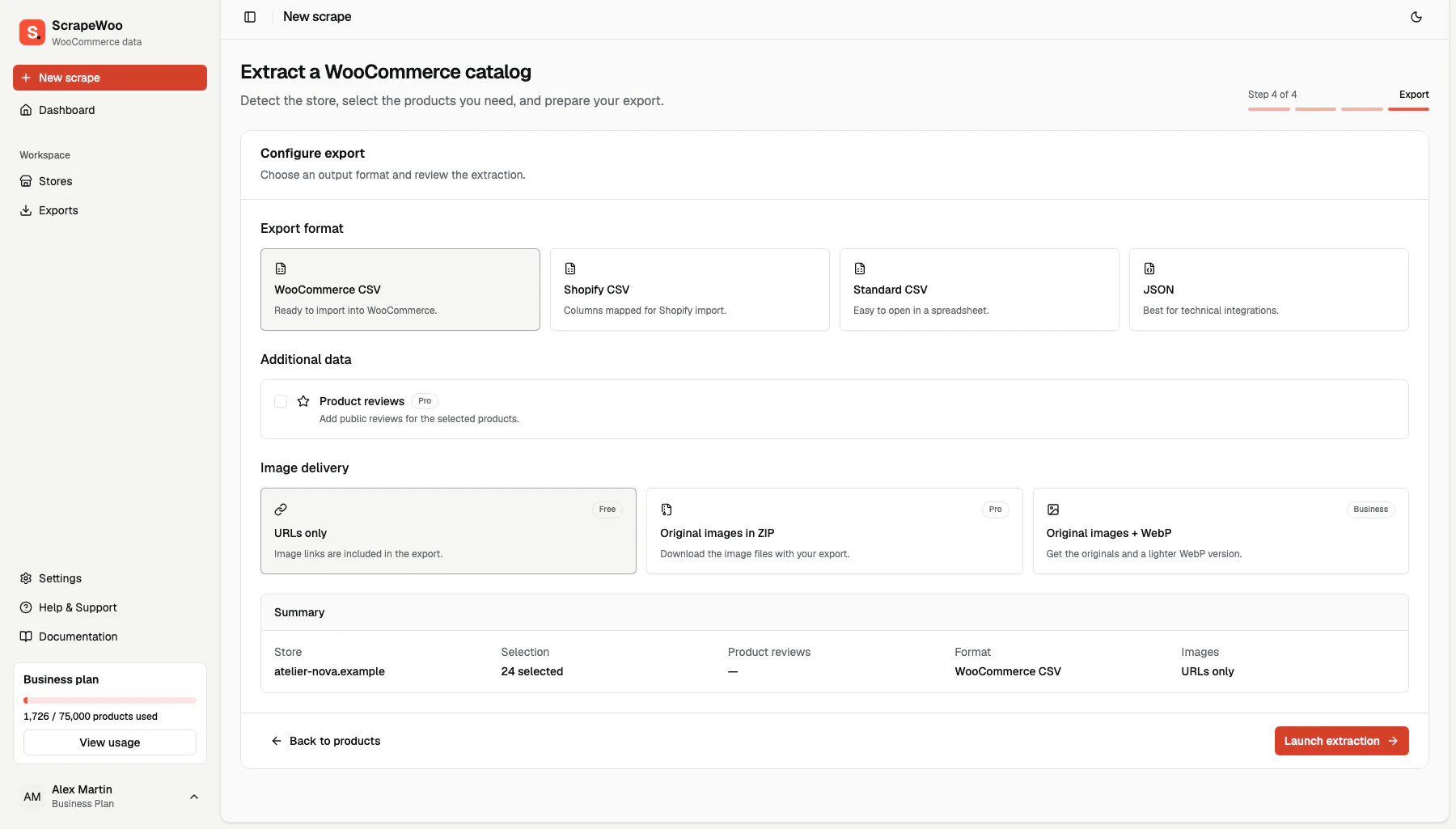
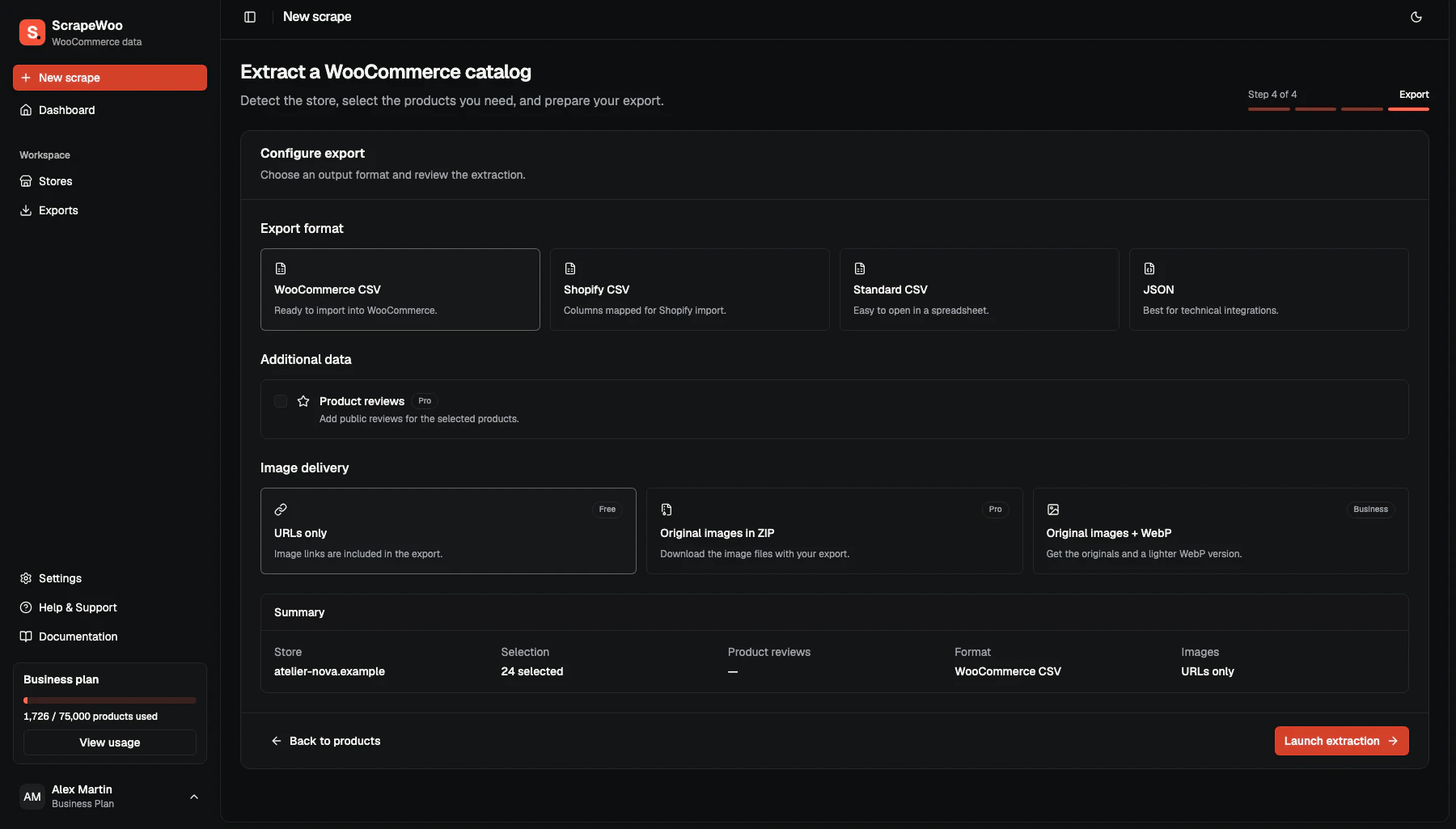
That is the file that imported in one pass at the top of this guide. The result: 3 products, 6 variations, every variation attached to its parent and every option leading to a variation. In a second file, built from a product whose color was a global attribute, the column carried 1 and the import recreated the global Color attribute with its two terms.
Two choices stay yours, because they depend on the destination store. The file has no default column, so no option is preselected: add one if you want a default. And the ID column is empty, so the import creates new products and a later update matches them by SKU.
You then run the import in your own store, with the checks below. If you have not yet decided between this file and another format, the guide to choosing a WooCommerce product export format compares the four. For a Shopify destination, variations follow different rules, described in migrating WooCommerce products to Shopify with a CSV.
Check a test import before the full one
Import two or three variable products first, on a staging copy if you have one. Then open each product and check:
- The product type is variable.
- The number of variations equals the number of variation rows for that parent.
- In the Attributes tab, "Used for variations" is checked only for the attributes you meant.
- Each variation shows the value you expect, or "Any" where the cell was empty.
- Each variation has a price and the stock you expect.
If something is wrong, correct the file and import it again with "Update existing products" checked. Rows are then matched by SKU: in our tests the second run created no duplicate and gave back its size to the variation that had lost it. It cannot repair a variation without a SKU, which that run skips. A ScrapeWoo file carries a SKU on every row.