How to compare two WooCommerce catalogs: prices, stock and missing products
How to pair two WooCommerce catalogs by SKU, then by name, and read the price gaps, stock gaps and one-sided products. Tested on two overlapping stores and two theme demos.
You have two WooCommerce stores in front of you: yours and a competitor's, a store and its copy after a migration, or a supplier's catalog and your resale of it. You want to know which products cost more on one side, which are out of stock on one side, and which exist on one side only.
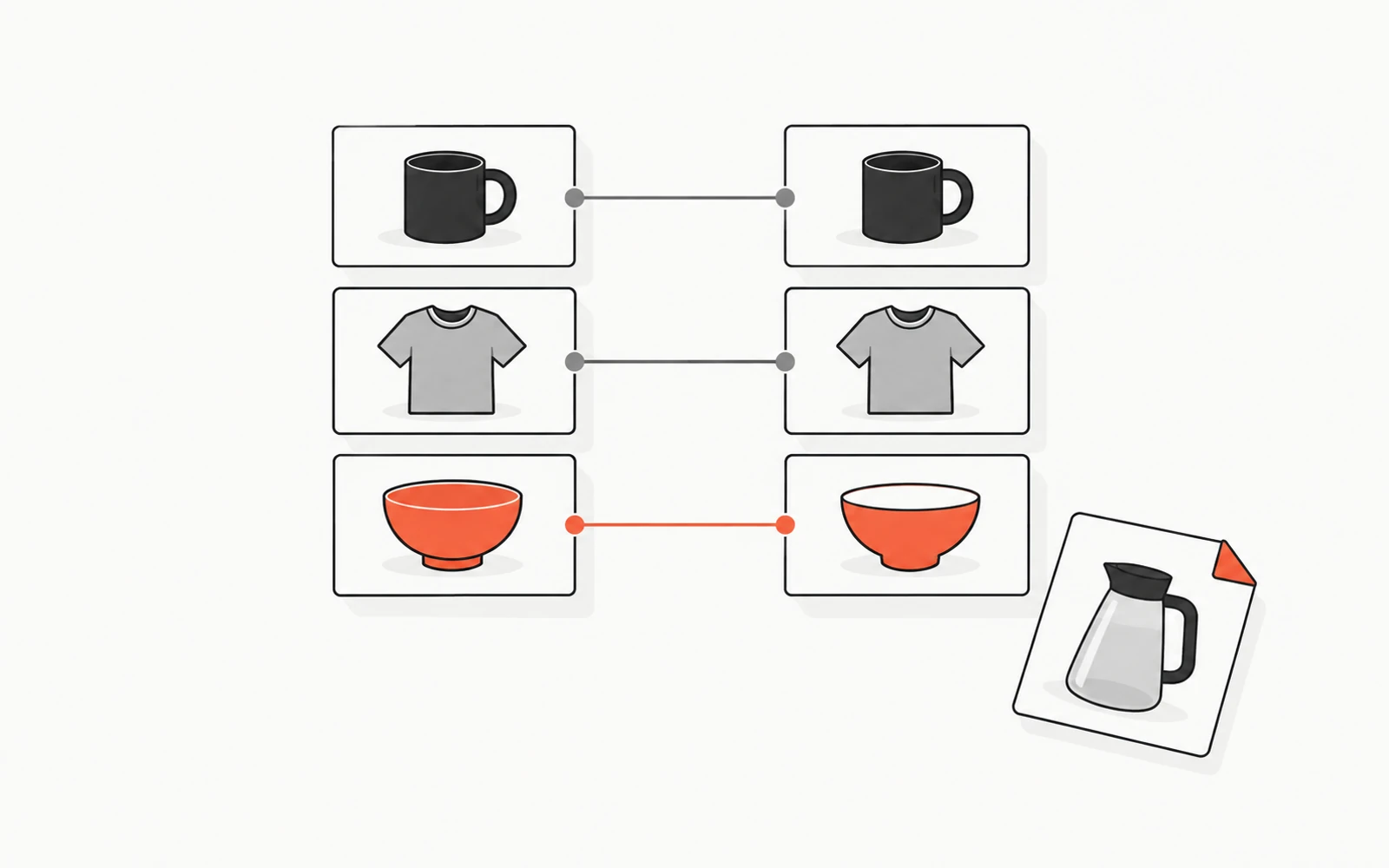
Comparing two catalogs is two jobs. First, each product is paired with its counterpart in the other store. Then the gaps are read off each pair. The pairing decides everything that follows: a wrong pair invents a price gap, and a missed pair invents a missing product. The free Catalog Compare tool does both jobs from the two stores' addresses. It pairs products by SKU, then by name, and reports price gaps, stock gaps and products found on one side only.
To see where that rule holds and where it needs a human eye, we built two test stores that overlap on purpose and ran the tool's matching on them. Then we ran the tool on two theme vendors' public demos.
How this was checked
October 15, 2026. Two test stores on WooCommerce 11.2.1 and WordPress 7.1.3, with the Twenty Twenty-Five theme and no other extension, built in English and again in French. Store A held 14 published products and store B 15, with planned overlaps: shared and clashing SKUs, near-identical names, a sale, a variable product, a backorder. The tool's own matching code ran on both stores' public product lists. Catalog Compare itself ran on two public theme demos, as it works today.
What the comparison reads from each store
You enter two addresses and nothing else: no login, no key, no access to either dashboard. The tool reads each store's public product list, the one WooCommerce's Store API products endpoint gives to any visitor. It takes up to 100 products per store, in order of product ID, the oldest first. For each product it keeps the name, the SKU, the price and whether it is in stock.
Here is how each of those fields is used:
| Field | How the comparison uses it |
|---|---|
| SKU | First key for pairing, with case and surrounding spaces ignored |
| Name | Second key, for every product the SKU did not pair; accents, case and punctuation ignored |
| Price | The price a shopper pays now, sale price included; a different currency counts as a gap |
| Stock | In stock or out of stock |
The report gives four counts: matched products, matched products with a gap, products only in the first store and products only in the second. Below them it lists the pairs with a gap, each with its matching key, both prices and both stock states. Then come the names of products found on one side only. The lists show up to 12 pairs and up to 5 names per side; the counts cover every product read.
How products are paired
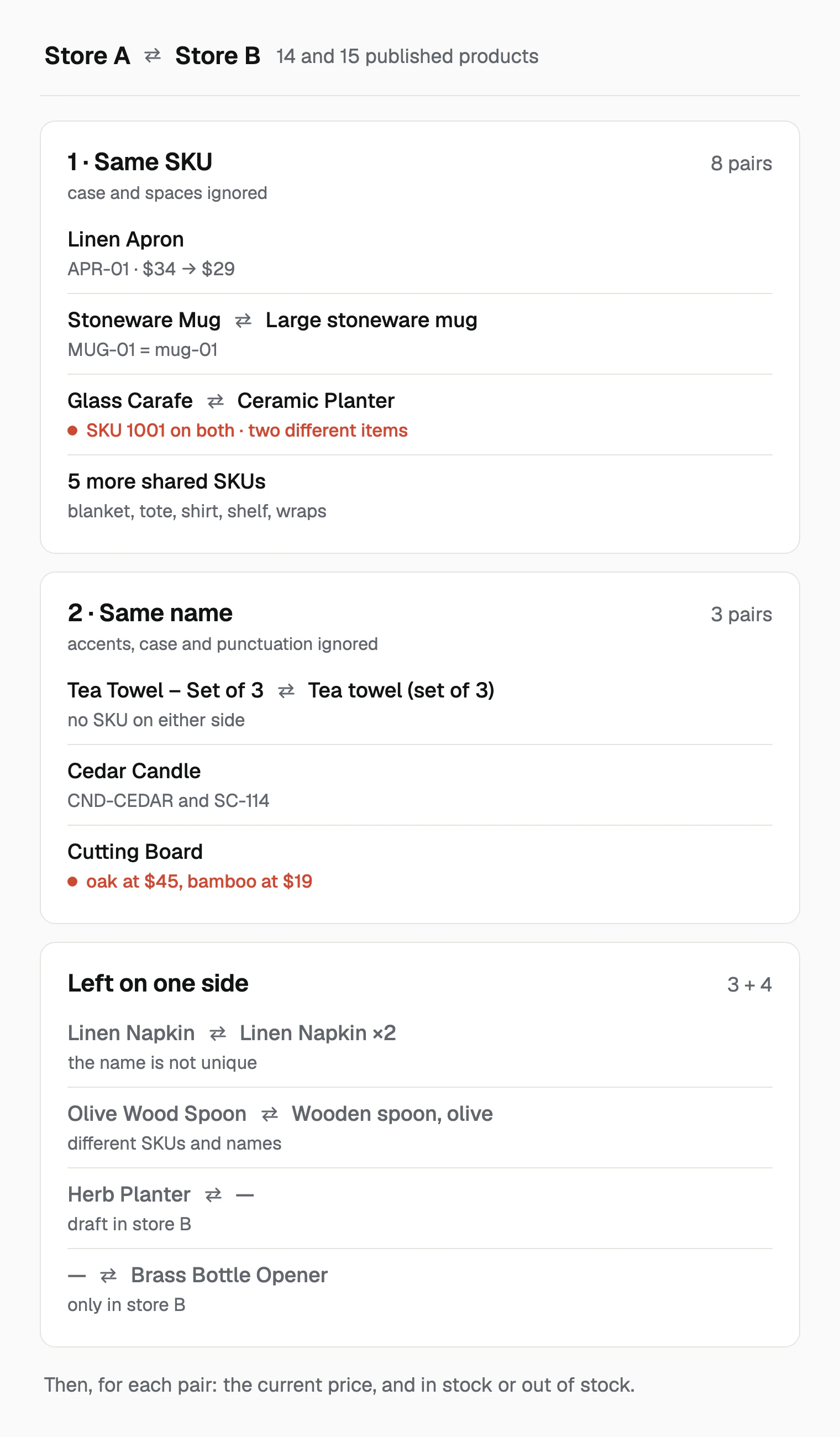
The first pass looks for the same SKU in both stores. Case does not matter: our mug was MUG-01 in store A and mug-01 in store B, under two different names, and the tool paired them.
The second pass takes every product left over and looks for the same name. Before comparing, it drops accents, ignores case and treats any run of punctuation or spaces as one space. "Tea Towel – Set of 3" and "Tea towel (set of 3)" became the same name and were paired. The name pass also catches products whose SKUs differ: our cedar candle was CND-CEDAR on one side and SC-114 on the other, and it was paired by its name.
A key is only used when it is unique on both sides. Store B sold two products called "Linen Napkin", a white one and a gray one, and store A one. The tool cannot know which of the two is A's napkin, so it paired none of them. All three were listed on their own side, and the report's note says so: ambiguous duplicates are left unmatched rather than guessed.
Our two test stores, compared
Store A and store B shared most of their catalog, with one difference planted per product. Here is what each product looked like on both sides, and what the comparison reported:
| Product | Store A | Store B | Report |
|---|---|---|---|
Linen Apron, APR-01 |
$34 | $29 | SKU pair, price gap |
Canvas Tote, TOTE-01 |
$24 | $24, on sale at $19 | SKU pair, price gap $24 → $19 |
Wool Blanket, BLK-01 |
In stock | Out of stock | SKU pair, stock gap |
| Cedar Candle | $22, CND-CEDAR |
$24, SC-114 |
Name pair, price gap |
| Cutting Board, no SKU | Oak, $45 | Bamboo, $19 | Name pair, price gap |
SKU 1001 |
Glass Carafe, $32 | Ceramic Planter, $27 | SKU pair, price gap |
| Linen Shirt, sizes S and L | $60 and $70, both in stock | $60 and $80, S out of stock | SKU pair, no gap |
| Pine Shelf | In stock | On backorder | SKU pair, no gap |
| Beeswax Wraps | 50 in stock | 2 in stock | SKU pair, no gap |
| Olive Wood Spoon | OWS-1 |
"Wooden spoon, olive", WS-22 |
On both one-sided lists |
| Herb Planter | Published | Draft | Only in store A |
| Brass Bottle Opener | None | Published | Only in store B |
The totals: 11 matched products, 6 of them with a gap (5 on price, 1 on stock), 3 products only in store A and 4 only in store B. The other five pairs showed no gap: the mug, the tea towel, the shirt, the shelf and the wraps. The French pair of stores, with French product names and prices in euros, gave the same counts.
False matches and missed pairs: what to check by hand
The rule pairs on identifiers, not on what the product is. When an identifier and a product disagree, the report shows a gap or a missing product that is really a pairing question.
The same SKU on two different items
Store A used 1001 for a glass carafe; store B used 1001 for a ceramic planter. The SKU pass paired them, and the report listed "Glass Carafe" with a price gap of $32 → $27. The row shows the first store's name and the SKU, so nothing on it says the second product is a planter.
Inside one store, a SKU cannot be used twice. When we tried to give a second product APR-01 by script, WooCommerce refused with "Invalid or duplicated SKU." Nothing coordinates SKUs between two stores, though. Short or numbered SKUs such as 1001 can mean anything on the other side. Open both product pages before trusting a SKU pair with a large gap.
The same name on two different items
Both stores sold a "Cutting Board" with no SKU: oak at $45 in store A, bamboo at $19 in store B. The name pass paired them and reported a price gap. Generic names like this one are the ones to watch. The report marks every pair with its key, "SKU" or "Name". A name pair with a large gap is the first row to check.
The same item under two names
Our olive wood spoon was "Olive Wood Spoon", OWS-1, in store A and "Wooden spoon, olive", WS-22, in store B. Neither key matched, so it appeared on both one-sided lists. The rule does not pair on similar words, which keeps products with close but different names apart. Read the two one-sided lists side by side; a product that sits in both under different names is a missed pair, not a missing product.
A name used twice, and a product that is not published
The two napkins stayed unpaired because their name was not unique. The herb planter existed in both dashboards, but it was a draft in store B, and a draft is not in a store's public list. "Only in store A" can also mean "not published in store B". For another store, that is the useful reading. For your own copy, check the product's status in the dashboard. The guide to copying products between WooCommerce stores lists the other checks to run after an import.
Reading the price and stock gaps
The price compared is the one a shopper pays now. The canvas tote had the same regular price in both stores; store B had it on sale at $19, and the report showed $24 → $19.
A variable product is compared as one product, at the price the Store API gives for it: its lowest variation price. Our linen shirt started at $60 in both stores, so the report showed no gap. Store B's large size cost $10 more, and its small size was out of stock. The shirt still counted as in stock, because one of its sizes was.
Stock is compared as in stock or out of stock. The beeswax wraps had 50 units in store A and 2 in store B: no gap. The pine shelf on backorder in store B was in stock for the comparison, as it is for a shopper who can still order it.
Prices in two currencies count as a gap. The report shows each price in its own store's currency and does not convert them.
Two theme demos, compared
We ran Catalog Compare on the Flatsome theme's demo store and the React theme's demo store. Both carry the same set of example products, among them "Woo Logo", "Ship Your Idea" and "Flying Ninja". The report read every product: 67 in the first store, 23 in the second.
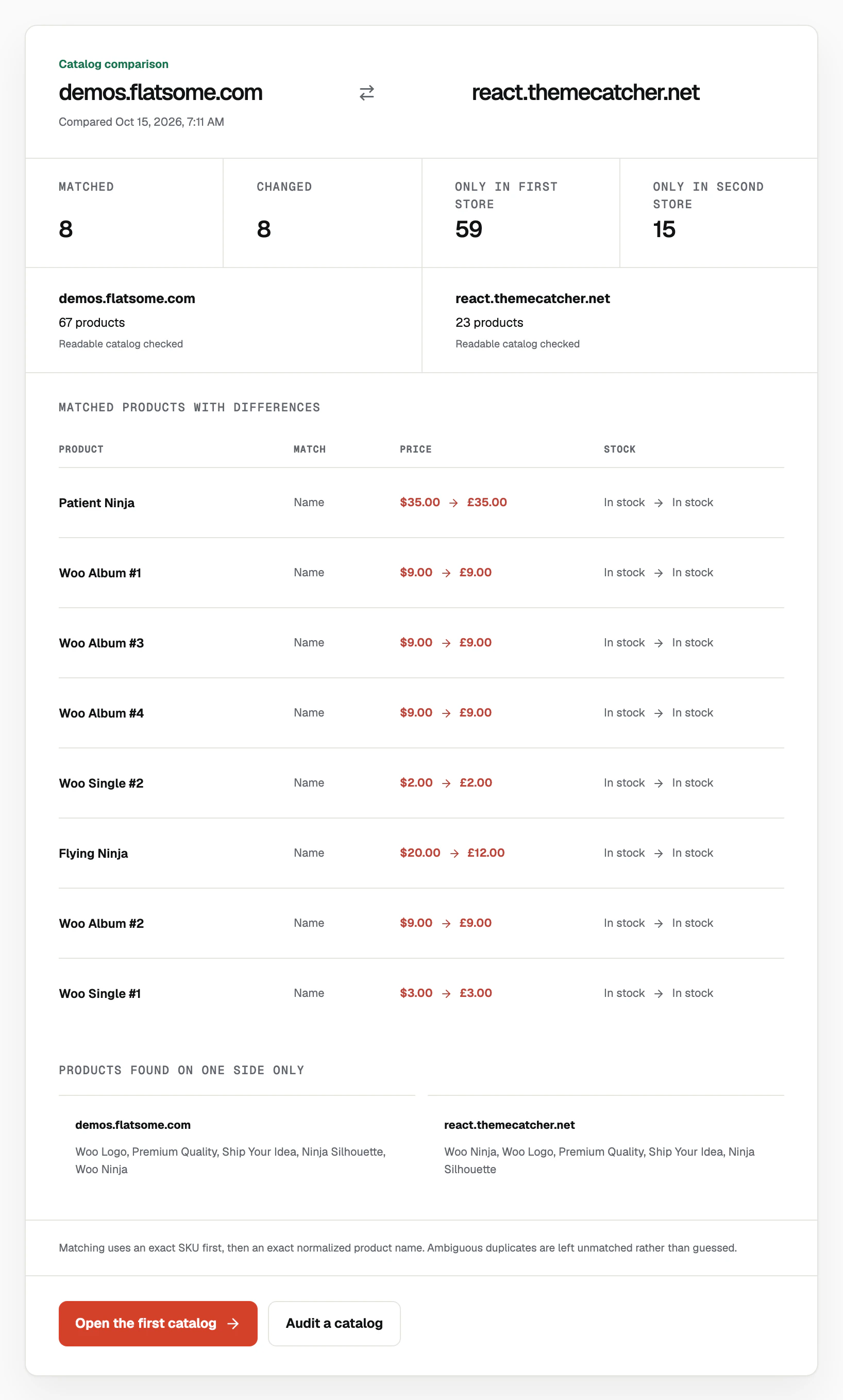
Eight products were matched, all by name, and all eight were listed with a price gap. The React demo sells in pounds and the Flatsome demo in dollars, so every pair differs in currency. Each row of the report shows a dollar price next to a pound price. Seven of the eight have the same amount on both sides, such as 35 for "Patient Ninja". The eighth is a real difference: "Flying Ninja" is a variable product from $20 on Flatsome and a £12 poster on sale (from £15) on React.
The 15 products "only in the second store" are the more instructive number. Six names repeat on each side, two or three times each. In the React demo, "Ship Your Idea" is a T-shirt, a hoodie and a poster. Only one of the 90 products across both demos has a SKU, so the name is the only key. A name shared by three products cannot say which T-shirt is which, and the tool left all of them unpaired. That is why both one-sided lists at the bottom of the report show the same five names.
When one design comes in several product types, a product-by-product comparison needs SKUs. Without them, the tool still gives you the stores' sizes, the unique products both carry and the duplicate names to sort by hand.
Larger catalogs, and keeping the result
To see what happens past the first 100 products, we added 100 products to store B and published a new herb planter after them. The report then said "First 100 products checked" under store B, and the planter stayed "only in store A": it was product 116 of 116. On a large catalog, the free report shows how the two stores' longest-standing products compare.
For the whole catalog, export it. The report's "Open the first catalog" button opens ScrapeWoo with the first store's address. You review its categories and products and export them as a standard CSV or JSON, then do the same for the second store. The standard CSV has one row per product and one per variation, each with its SKU, price, regular price, currency and stock status. The quantity is there when the store publishes it.
Pair the two files on the SKU column, then on the name for rows without one, as the tool does. Per-variation rows carry what the one-line comparison leaves out. For our shirt, that is the $80 large size and the small size out of stock. If you are choosing between CSV and JSON for that work, the guide to WooCommerce export formats compares them.
Both the tool and ScrapeWoo read only what each store publishes to any visitor. The guide to what the WooCommerce Store API exposes describes that list field by field. To start, enter your two stores in Catalog Compare and read the name pairs and the one-sided lists first.