Audit a WooCommerce catalog before a migration: what each gap costs
A real Catalog Audit report on a test store, followed through an import into a new store: what a missing image, description, SKU or category becomes, and a checklist.

You are about to move a WooCommerce catalog: to a new store, to a rebuilt site or to another platform. Before you export anything, you want to know what is missing. A product without a photo or a SKU does not get fixed on the way. It travels in the file and lands in the new store with the same gap, sometimes with a new problem attached.
The free Catalog Audit answers that question from the store's address alone. It reads up to 100 published products and checks five things on each: an image, a price, a description, a SKU and a category. We ran it on a test store where known products lacked an image, a description, a SKU or a category. Then we imported ScrapeWoo's WooCommerce CSV of that store into an empty one and followed every finding through the import.
Missing images and descriptions arrived missing, and the product with no category landed in Uncategorized. Missing SKUs cost the most. ScrapeWoo's file gave those products a stable SKU, so the import and a second update run went through cleanly. The same file with those SKUs left empty lost a variable product's options and could not update three products.
How this was checked
October 15, 2026. Two test stores on WooCommerce 11.2.1 and WordPress 7.1.3, with the Twenty Twenty-Five theme and no other extension, set up once in English and once in French. The Catalog Audit ran with its current code on the source store. ScrapeWoo's WooCommerce CSV of that catalog went into an empty store through the Products → Import screen, with the column mapping it preselects. We then read the new store product by product. The audit also ran on three theme vendors' public demos.
What the audit checks, and how it scores
The audit reads the store's public catalog, without a login or a key, and changes nothing. It takes the first 100 published products, in order of their ID. Each product passes or fails five checks, and each check weighs a set number of points out of 100:
| Check | A product passes when | Level | Points |
|---|---|---|---|
| Product images | It has at least one image with an address | Essential | 25 |
| Prices | It has a price set | Essential | 25 |
| Descriptions | Its description or short description holds some text | Recommended | 20 |
| SKUs | Its SKU is filled in | Recommended | 15 |
| Categories | It belongs to at least one category | Recommended | 15 |
Each check scores its share of passing products, times its points. A product sold at 0 passes the Prices check; a product with no price set fails it. A description is read as text with the HTML removed, so a description holding only an image or an empty paragraph counts as missing.
The status follows the score. "Ready to export" needs 95 or more and no gap in either Essential check. "Mostly ready" starts at 75, and anything lower reads "Needs review". The report also counts variable and out-of-stock products, without scoring them. When the store has more than 100 products, a line under the table says so: "100 of 340 products checked", for example, followed by "The score reflects this sample."
Our test store's report
The source store published eleven products. Each gap sat on a known product:
- no image: the bread basket;
- no description of either kind: the glass carafe;
- no SKU: the beeswax wraps, and the enamel mug, a variable product whose two variations had no SKU either;
- no category: the spice jar set;
- out of stock: the wicker basket;
- several gaps at once, no image, no description and no SKU: the clearance lot.
The other four products, two of them variable, had nothing missing.
Here is the report the audit page gave for it:
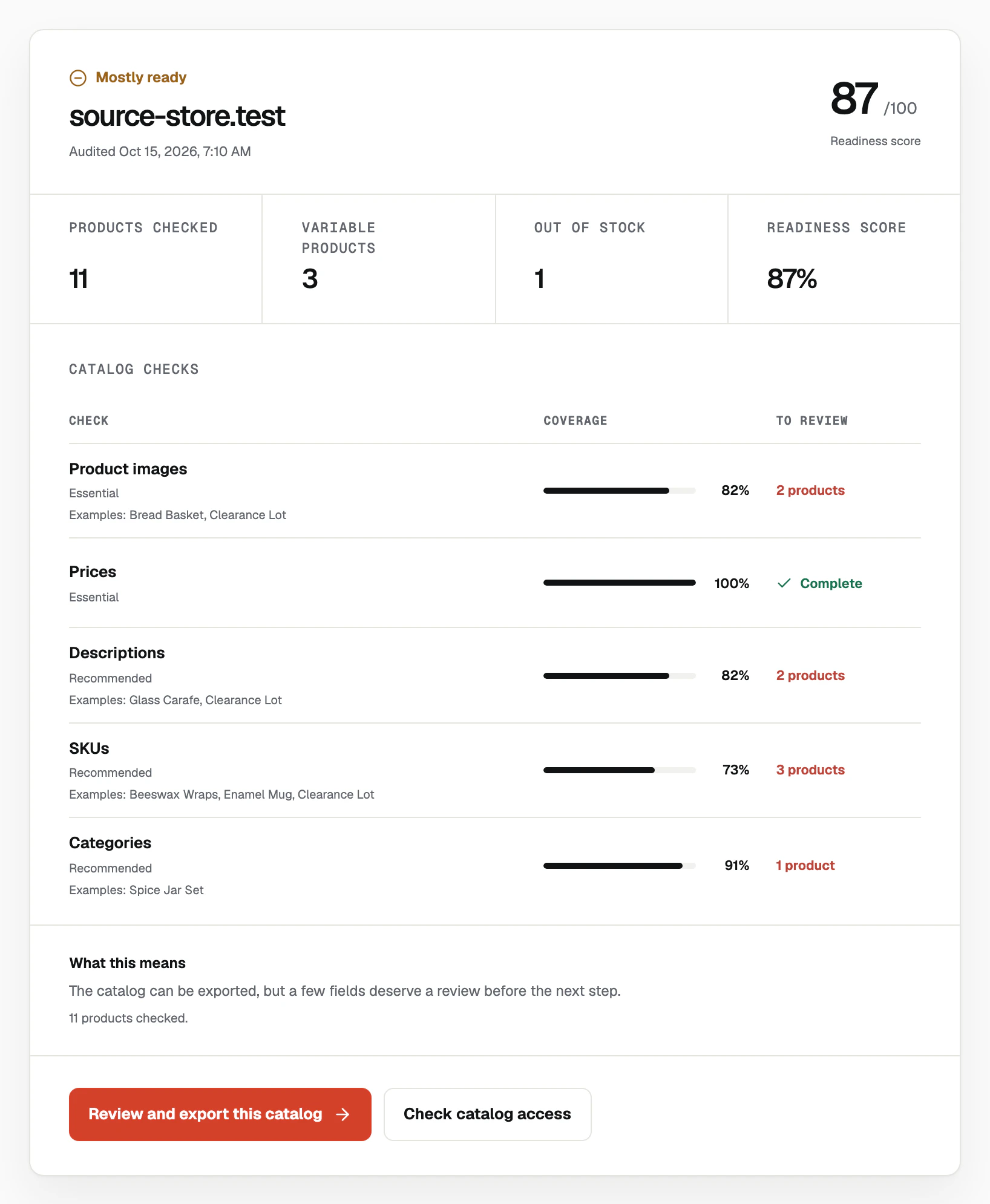
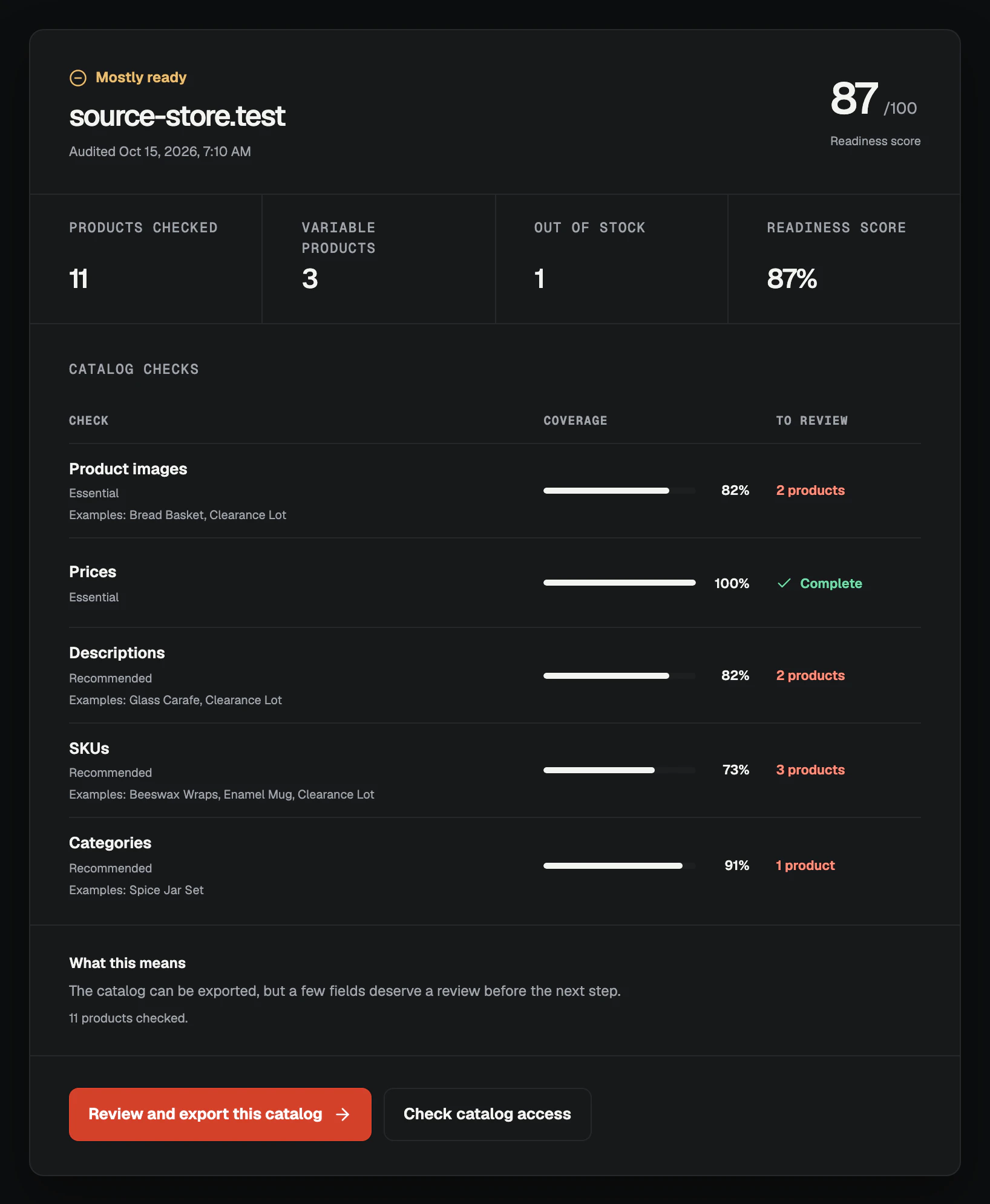
Every planted gap shows up, and nothing else does. Each row names up to three of the products concerned. The score of 87 is what remains once each check takes its share: 4.5 points for images, 3.6 for descriptions, 4.05 for SKUs and 1.35 for categories. Prices scored in full, since every published product had one. The French store, built the same way, got the same figures.
What each finding costs in the import
ScrapeWoo exported the catalog as a WooCommerce CSV, and the new store took it in a single run. The screen ended on "Import complete! 11 products imported. 6 variations imported." Here is what each finding became in the new store:
| Finding | In the file | In the new store |
|---|---|---|
| No image (2 products) | Images column empty | No image |
| No description (2 products) | Both description columns empty | Both descriptions empty |
| No SKU (3 products) | A SKU built by ScrapeWoo, such as SCRAPEWOO-17 |
That SKU, with the mug's two variations attached |
| No category (1 product) | Categories column empty | Uncategorized |
| Out of stock (1 product) | In stock? set to 0 | Out of stock |
Images and descriptions: what is missing stays missing
The importer downloads each image from the address in the file and adds it to the new store's Media Library, as the WooCommerce import documentation describes. Our nine products with an image arrived with it. The bread basket and the clearance lot had no address to download, and arrived with no image.
Descriptions travel as text in the file. The carafe's were empty in the source, and they were empty in the new store. Neither gap blocks the import or raises a message, so nothing on the import screen points you to them afterwards. The audit's list of examples is the place to start, and the source store is the cheapest place to fix them.
SKUs: the key every later import depends on
A SKU is how the importer recognizes a product. A variation row names its parent's SKU in the Parent column. A second import with "Update existing products" ticked matches rows by ID or SKU, according to the import documentation. ScrapeWoo's file leaves ID empty, because an ID from the old store means nothing in the new one. The SKU does that work.
ScrapeWoo's file never leaves the SKU empty. When the source has none, it writes SCRAPEWOO- followed by the product's ID in the source store, and builds each variation's SKU from it. The mug arrived as SCRAPEWOO-17, with its two colors. We then imported the same file again with "Update existing products". The screen read "Import complete! 17 products updated." Every row found its product, and nothing was duplicated.
To see what those SKUs were worth, we emptied them in a copy of the file, in both the SKU and Parent columns. Here is what that copy did in two runs:
| Run | What the screen said | What happened |
|---|---|---|
| First import, empty store | "11 products imported. 6 variations imported." | The mug arrived with no variations, out of stock. The Store API listed 4 variations, not 6. |
| Update run, on a store already holding these products | "12 products updated. 5 products were skipped." | The wraps, the mug and the clearance lot: "No matching product exists to update." Each mug variation: "A new variation cannot be created without a SKU or a GTIN, UPC, EAN, or ISBN." |
The first run is the costly one. It reported success, and the mug could no longer be bought. The guide to importing variable products from a CSV explains how a variation finds its parent, and why an empty Parent breaks the link.
A SKU built by ScrapeWoo keeps your import safe, and it then becomes the product's SKU in the new store. If you want your own references there, set them in the source store before the export. WooCommerce keeps them unique. When we tried to give a second product the apron's SKU, it refused with "Invalid or duplicated SKU."
Categories: the product lands in Uncategorized
WooCommerce puts a product saved without a category in its default category, Uncategorized on our test store. The Store API left that default category out of the spice jar set's entry, so the audit counted the product as having no category. The file carried none either, and the new store put the product in its own Uncategorized. It stays there until someone moves it. One category set in the source fixes it before the export.
Out of stock and variable products: two counts to check after the import
These two counts do not touch the score. The wicker basket arrived out of stock, as in the source. The three variable products arrived with all six of their variations, each with its price and color.
Three theme demos through the same audit
We also ran the audit on three theme vendors' public demo stores, to see which findings turn up in a real catalog:
| Demo | Products checked | Score and status | Gaps found |
|---|---|---|---|
| Flatsome theme demo | 67 | 85, Mostly ready | 66 products without a SKU, 1 without a price |
| Woostify theme demo | 12 | 85, Mostly ready | 12 products without a SKU |
| Shoptimizer theme demo | 23 | 100, Ready to export | None |
On the Flatsome and Woostify demos, almost every SKU was missing, while images, descriptions and categories were complete. Both still scored 85, because SKUs weigh 15 points. The Flatsome demo also had one product with no price, which the audit names under Prices. For a migration, read the rows as well as the score. A catalog with no SKUs needs them before an import you may have to run twice.
Checklist before you export
Here is the order we would follow on a real store, from the report to the import:
- Run the Catalog Audit on the store's address. If the report says the score reflects a sample, the products after the 100th have not been read.
- Add the missing images in the source store. The importer can only download images the file points to.
- Fill in the missing SKUs, on products and on variations, if you want your own references in the new store. Otherwise, keep the ones ScrapeWoo builds.
- Give each product listed under Categories a real category.
- Write the missing descriptions, or list the products to complete after the move.
- Run the audit again: the rows you fixed should read Complete.
- Import a few products into the new store first, including one variable product. Open it and pick each option.
- Keep the source store online until the import is done: the images are downloaded from it.
- To correct prices or stock later, fix the file and import it again with "Update existing products". The SKUs make every row find its product.
From the report to the file
Under the report, "Review and export this catalog" opens ScrapeWoo with the store's address already filled in. You see the categories and products the store publishes, keep the ones you need and export them. The formats are a WooCommerce CSV, a Shopify CSV, a standard CSV or JSON, with no login to the store and no key.
The WooCommerce CSV carries a SKU on every row, so variations stay attached and update runs find their products, as in the tests above. The file holds the published catalog the audit reads. The import itself runs in the new store. The guide to copying products between WooCommerce stores walks through that import and the settings to set again. For a move to Shopify, start with the guide to migrating WooCommerce products to Shopify with a CSV.