The WooCommerce Store API: what a store exposes publicly
What the WooCommerce Store API gives anyone without a key, field by field: which products answer, what the stock settings change and what never appears.
You came across the address /wp-json/wc/store/v1/products, perhaps in a tool's report, a page's source or your own server logs. Typed after a WooCommerce store's domain, it returns a list of products by default, to anyone, with no login and no key. If the store is yours, you want to know what else it gives out. If it is someone else's, you want to know what you can rely on.
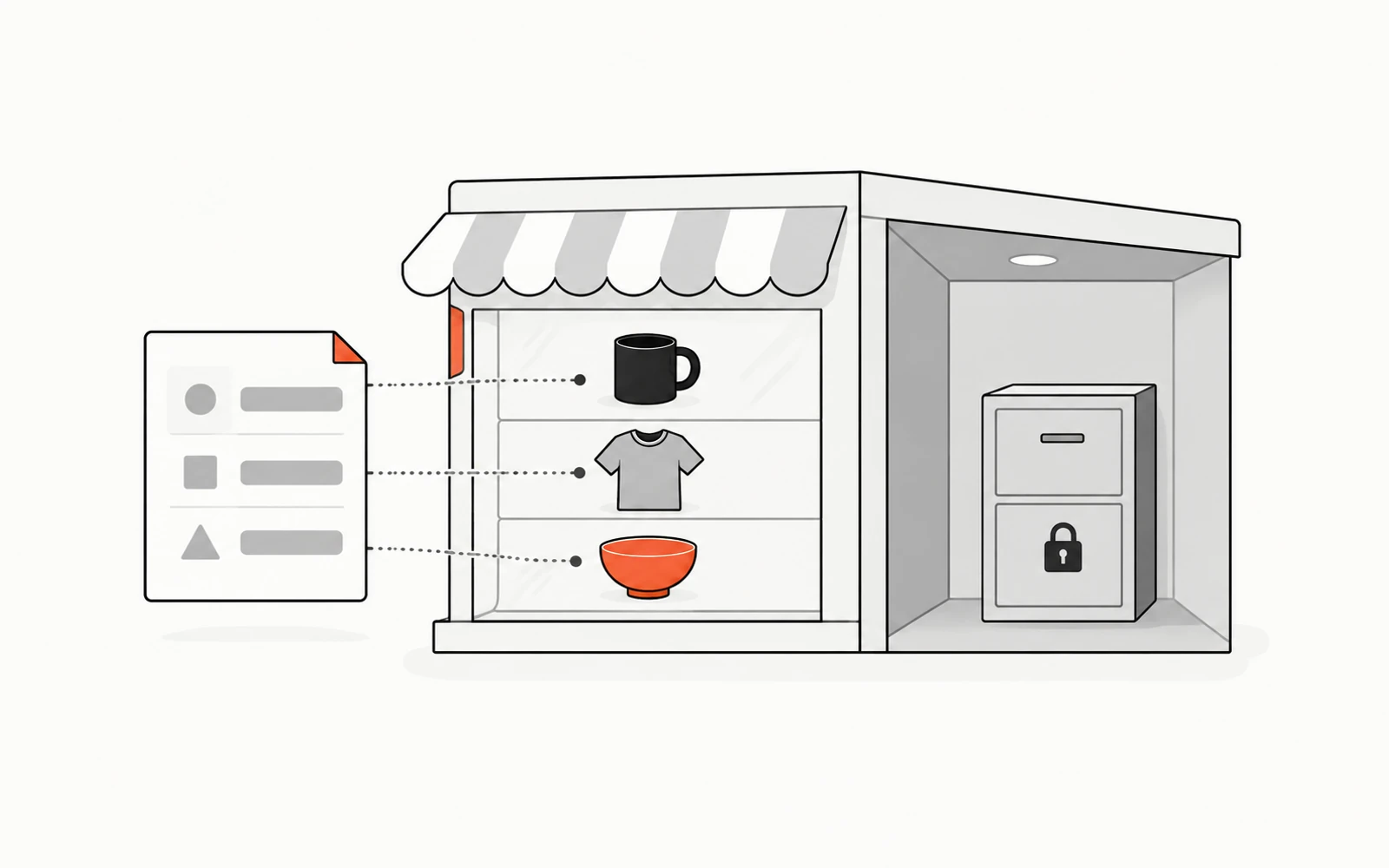
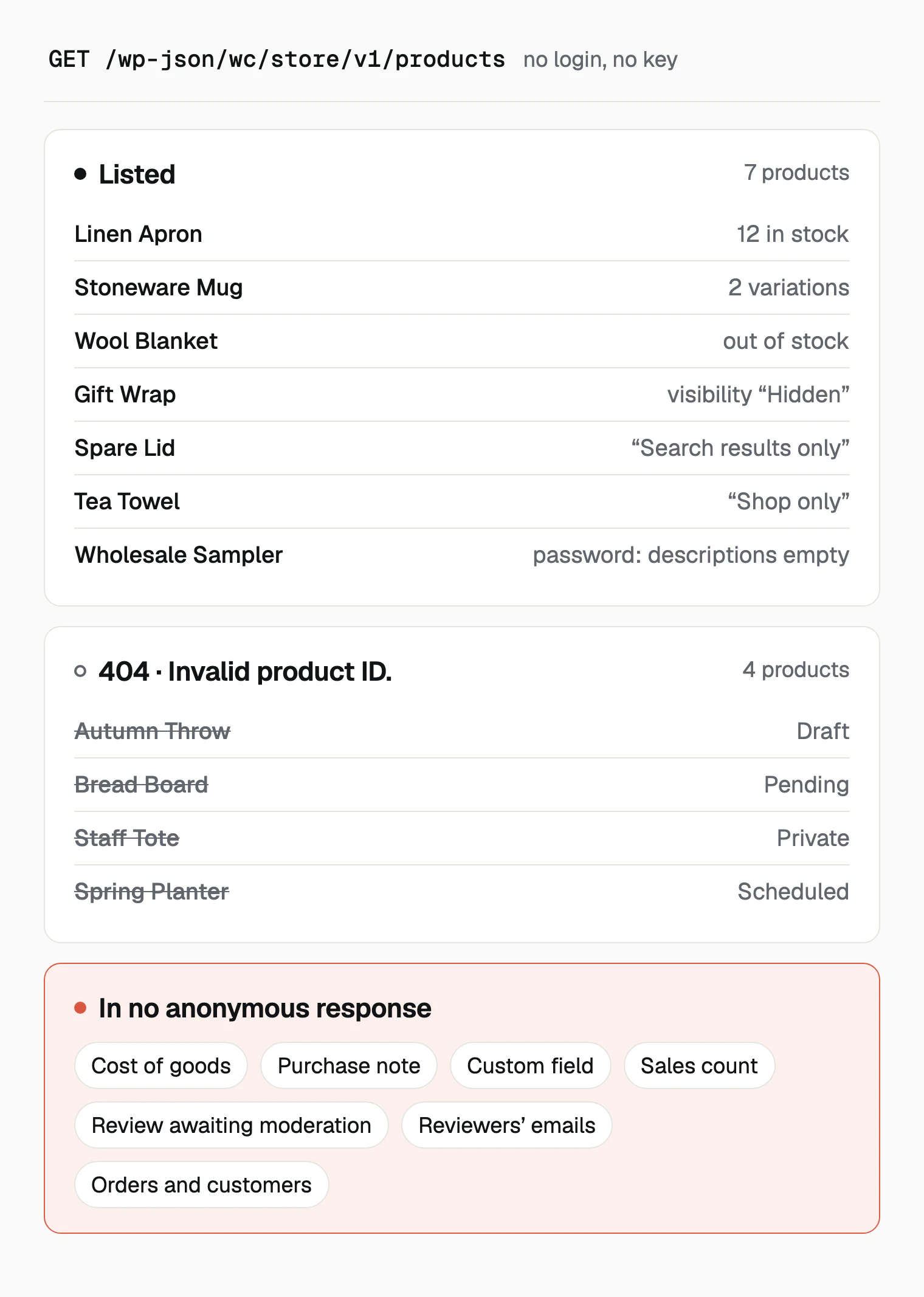
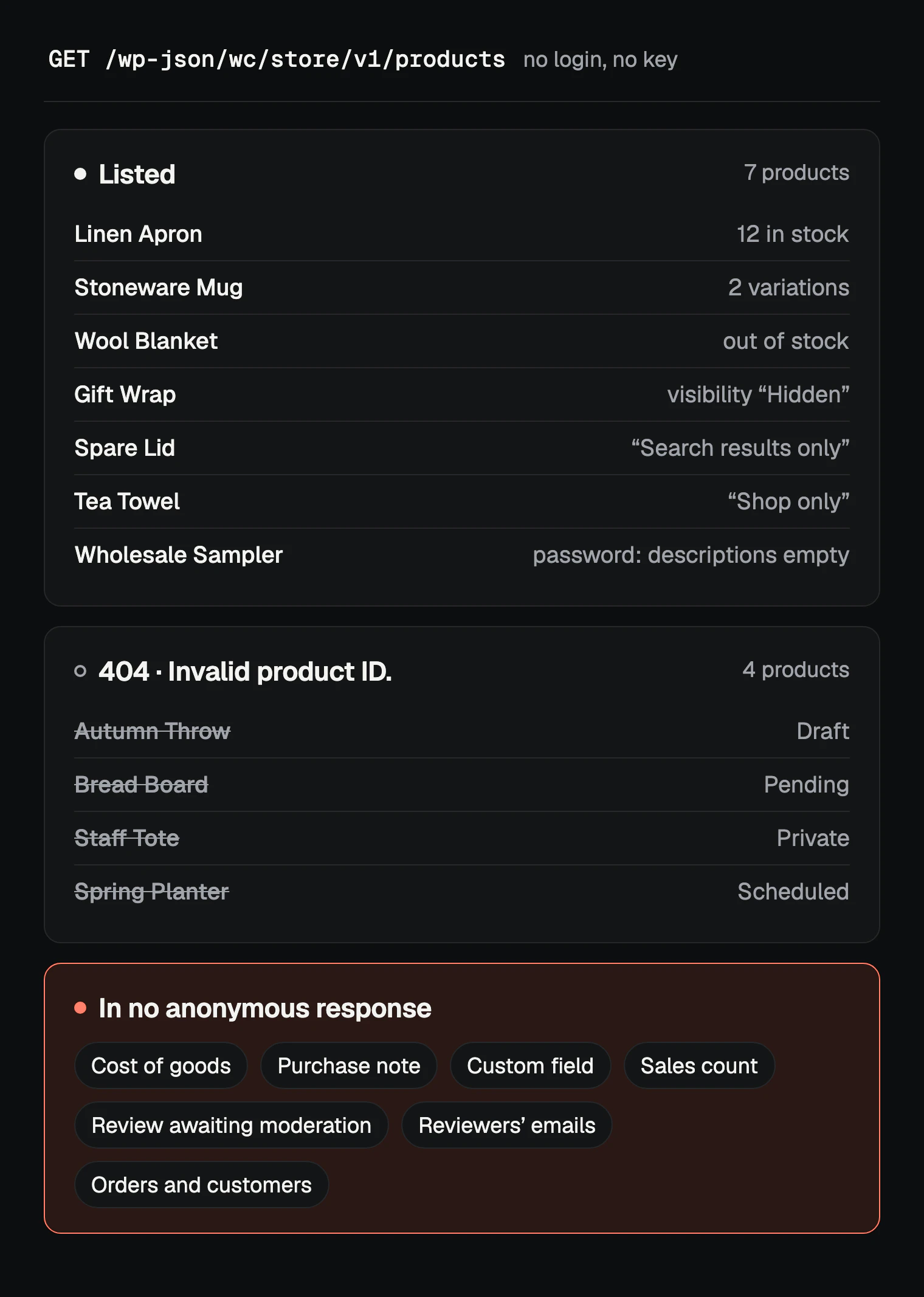
That address belongs to the Store API, the interface WooCommerce provides for what shoppers use: product lists, the cart and the checkout. Anyone can read the published catalog through it: prices, images, categories, attributes, variations, stock status and approved reviews. Drafts, pending, private and scheduled products answer "Invalid product ID." Costs, purchase notes, custom fields, orders and customer accounts appeared in none of the anonymous responses we collected.
Some settings change the answer. Two of them, the "Hidden" catalog visibility and the stock display format, hide less than their names suggest. We built a test store with a product in each state and read it as an anonymous visitor. Then we ran the free Store API Checker on public theme demos.
How this was checked
October 15, 2026. A test store on WooCommerce 11.2.1 and WordPress 7.1.3, with the Twenty Twenty-Five theme and no other extension, set up once in English and once in French. Eleven products and two variations covered every publication status and catalog visibility the dashboard offers, with three reviews. Settings were changed one at a time, and every request was sent without a login or a key. The checker, in its current version, ran on theme vendors' public demos.
Where the Store API lives
Every Store API address starts with the store's domain, then /wp-json/wc/store/v1/. The Store API documentation calls it an unauthenticated API that "does not require API keys or authentication tokens for access". It answers in JSON. Open /wp-json/wc/store/v1 on its own and you get the list of routes the store supports: 31 on our test store.
The catalog routes are read-only. Here is what they, and the cart route, returned to an anonymous request on our test store:
Address, after /wp-json/wc/store/v1 |
What came back |
|---|---|
/products |
The published products, 10 per page unless you ask for more |
/products/<id> or /products/<slug> |
One product or one variation |
/products/categories |
Each category with its description, image and product count |
/products/tags, /products/attributes |
Tags, and global attributes such as Color; their values at /products/attributes/<id>/terms |
/products/reviews |
Approved reviews, with the reviewer's name, the text and the rating |
/products/collection-data |
Catalog totals on request: the price range, and products per stock status and per rating |
/cart |
The visitor's own cart, empty for a new visitor |
A page holds at most 100 products. Asking for 101 returned a 400 error: "per_page must be between 1 (inclusive) and 100 (inclusive)". Two response headers give the size of the catalog: X-WP-Total for the number of products and X-WP-TotalPages for the number of pages. That is how the Flatsome theme's demo announced its 67 products.
One product, field by field
Each product in the list came with 37 fields. The set was identical on our test store and on the Woostify and Flatsome demos. Here is part of our linen apron's entry, shortened where marked:
{
  "id": 13,
  "name": "Linen Apron",
  "sku": "APR-01",
  "prices": {
    "price": "2900",
    "regular_price": "3400",
    "sale_price": "2900",
    "currency_code": "USD",
    "currency_minor_unit": 2,
    …
  },
  "is_in_stock": true,
  "stock_availability": {
    "text": "12 in stock",
    "class": "in-stock"
  },
  "add_to_cart": { "maximum": 12, … },
  "extensions": {}
  …
}
Prices are whole numbers
The apron sells at 29.00, and its entry says "2900". Every price is written in the currency's smallest unit, and currency_minor_unit gives the number of decimals: 2 here. The documentation uses the same rule for its price filters, where 10025 means 100.25 USD and 1025 means 1,025 JPY. Read the field that way and separators never get in the way. The Flatsome demo is set to a decimal comma, and its API still sent "3900" for an item priced at 39 dollars.
The rest of the entry
Around the prices you find what a product page shows. That covers the name, the SKU, the public address, both descriptions as HTML, and the categories, tags, brands and attributes. Each image comes with its full-size address, a thumbnail, the resized versions and its alt text. The entry also carries the average rating, the review count, and the weight and dimensions when they are set.
A variable product lists its variations by ID, each with its attribute values, and gives a price range. Our stoneware mug returned a range from 1500 to 1800 and two variations, Sand and Slate. The product list leaves variations out by default. Add ?type=variation to list them, or open one by its ID.
The last field, extensions, was empty on every product we read. That is where plugins publish their own data, through an interface the documentation describes for developers. On a store with extensions, look there for fields the core list does not have.
Which products answer, and which return 404
Our test store held eleven products, spread across the states the product screen offers. For every state, the table shows whether the product was in the list and what its own address returned:
| State in the dashboard | In the product list | At its own address |
|---|---|---|
| Published, catalog visibility "Shop and search results" | Yes | The full entry |
| Published, out of stock | Yes | The full entry, "Out of stock" |
| Catalog visibility "Shop only" or "Search results only" | Yes | The full entry |
| Catalog visibility "Hidden" | Yes | The full entry |
| Visibility "Password protected" | Yes, descriptions empty | The entry, descriptions empty |
| Draft, Pending, Private or Scheduled | No | 404, "Invalid product ID." |
Publication status is what decides
The four unpublished products stayed out of the list, out of search results and out of their own addresses. The products endpoint documentation states the rule: "Only published products are accessible via the Store API."
"Hidden" hides a product from pages, not from the API
In the dashboard, the catalog visibility "Hidden" takes a product off the shop and the search results. The Store API still listed our gift wrap, and a search for "Gift" found it. The list accepts a catalog_visibility filter. Without it, our store returned the same seven products as with catalog_visibility=any. With visible, it returned the four set to "Shop and search results". A product that visitors must not see belongs in Private or Draft.
A password covers the descriptions only
Our wholesale sampler had a password. The list still gave its price of 120.00, its category, its rating and its review count. Its two descriptions came back as empty strings, and its review stayed out of the reviews route. The documentation describes the same thing: descriptions are redacted "until the correct password has been submitted", and the other product data stays readable.
Out of stock stays listed unless the store hides it
The setting "Hide out of stock items from the catalog" lives under WooCommerce → Settings → Products → Inventory. With it ticked, our list dropped from seven products to six. The wool blanket was the one missing, and its own address still answered, with "Out of stock".
Stock: the display setting changes the words, not the limit
The same Inventory screen has a "Stock display format" setting with three choices. We tried each one with the apron at 12 units, then at 2; its low stock threshold was 3. Here is what the apron's entry said each time:
| Stock display format | Units | stock_availability |
low_stock_remaining |
add_to_cart.maximum |
|---|---|---|---|---|
| Always show quantity remaining in stock (default) | 12 | "12 in stock" | null | 12 |
| Only show quantity remaining in stock when low | 12 | "In stock" | null | 12 |
| Only show quantity remaining in stock when low | 2 | "Only 2 left in stock" | 2 | 2 |
| Never show quantity remaining in stock | 12 | "In stock" | null | 12 |
| Never show quantity remaining in stock | 2 | "In stock" | null | 2 |
The sentence follows the setting, and so does low_stock_remaining. The field add_to_cart.maximum, the largest quantity a shopper can add to the cart, does not. It equaled the units in stock under all three choices. On a product without a managed stock count, such as the wool blanket, it read 9999.
The product page carries the same figure. With "Never show", the apron's page displayed "In stock", and its source held "maximum":12 in the product data embedded in the page. If your stock levels are sensitive, keep in mind that the display setting changes the words on the page. A managed stock count still sets the cart limit that the page and the API publish.
What no anonymous request returned
We gave the apron a cost of 11.50, a purchase note and a custom field holding a supplier reference. None of the three values appeared in any response we saved, in either language. No field gave a product's sales count or the date it was created. The review we left awaiting moderation never appeared, and neither did the reviewers' email addresses.
Approved reviews are public, as they are on product pages. Each one came with the reviewer's name, the text, the rating, the date, a "verified" flag and the addresses of an avatar image.
Orders and customers have no list in the Store API. We asked the order route for an order that exists, without its key. The answer was a 401 error with the message "Invalid order ID or key provided."
According to the order endpoint documentation, the route needs the order key, plus the billing email for a guest order. The cart route returned an empty cart, the new visitor's own. The Store API's main documentation page sums it up: the API "cannot be used to look up other customers and orders by ID".
The data you cannot see here lives behind the REST API with keys, wc/v3. Without a key, it refused the products, orders and customers lists alike. Each refusal read "Sorry, you cannot list resources."
Keys for that API are generated under WooCommerce → Settings → Advanced → REST API. Each pair is tied to a user of the site, according to the REST API documentation.
Checking a store with the Store API Checker
Reading these addresses by hand works on one store. The Store API Checker does the first pass from the store's domain alone, free and with no account. It requests the route list, then one record each from products, categories and reviews. The report says whether each answered, how long it took and how many records the store announces.
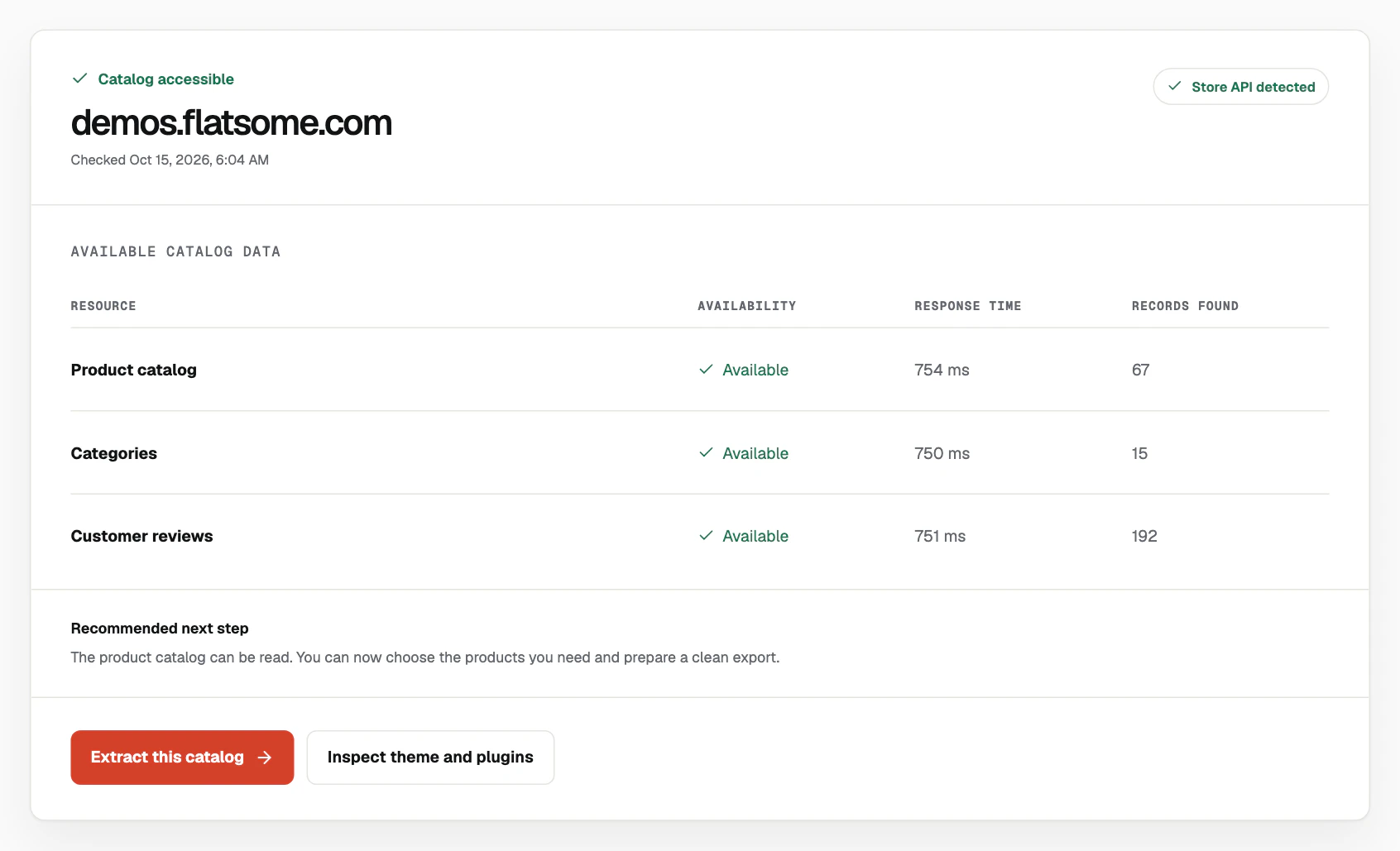
We ran it on theme vendors' public demos. Here is what it reported for four of them:
| Site | Report | Products, categories, reviews |
|---|---|---|
| Flatsome theme demo | Catalog accessible, Store API detected | 67, 15, 192 |
| Shoptimizer theme demo | Catalog accessible, Store API detected | 23, 12, 21 |
| A theme demo behind a bot check | Catalog unavailable, Store API unavailable | Unavailable |
| A theme vendor's WordPress site with no store at that address | Catalog unavailable, Store API unavailable | Unavailable |
On the two accessible demos, each line came back in under a second. For the Flatsome demo, the three counts equal the totals our own requests received.
"Catalog unavailable" means the products route did not answer with a JSON list, and the two refusals had different causes. On the demo behind a bot check, all four requests got a 403 error. Our own request there received a page titled "Just a moment...". On the vendor's site, WordPress answered with its own "no route" error, a 404: WordPress runs there, and no WooCommerce store does.
Who asks can matter too. The Shoptimizer demo refused curl's default request with a 403 and answered the checker. WooCommerce's own rate limiting for the Store API is off by default and covers POST requests only. A refused catalog read comes from something other than WooCommerce's defaults, such as a firewall, a bot check or a security plugin. To see what a shopper sees, open the products address in your own browser. If you are not yet sure the site runs WooCommerce, the guide on how to tell if a website uses WooCommerce starts there.
From a readable catalog to a file
When the report reads "Catalog accessible", its "Extract this catalog" button opens ScrapeWoo with the store's address. You review the categories and products the store publishes and keep the ones you need. Then you export them as a WooCommerce CSV, a Shopify CSV, a standard CSV or JSON, with no login to the store and no key. Prices come out as amounts, each variation stays tied to its parent, and stock quantities are in the file when the store publishes them.
The file holds the published catalog this article describes. Costs, purchase notes, custom fields and unpublished products come out of the store's own dashboard. The guide to exporting WooCommerce products sets the three routes side by side.
If the store is yours, run the checker on your domain, then open /wp-json/wc/store/v1/products?per_page=100 in a browser. That page is your catalog as the Store API gives it to any anonymous visitor.